Nimbalyst Slides
Presentation editor with live reveal.js preview, powered by AI
.slides.md Available in the Nimbalyst Extension Marketplace
Don't have Nimbalyst yet? Download it
Why Slides in Nimbalyst?
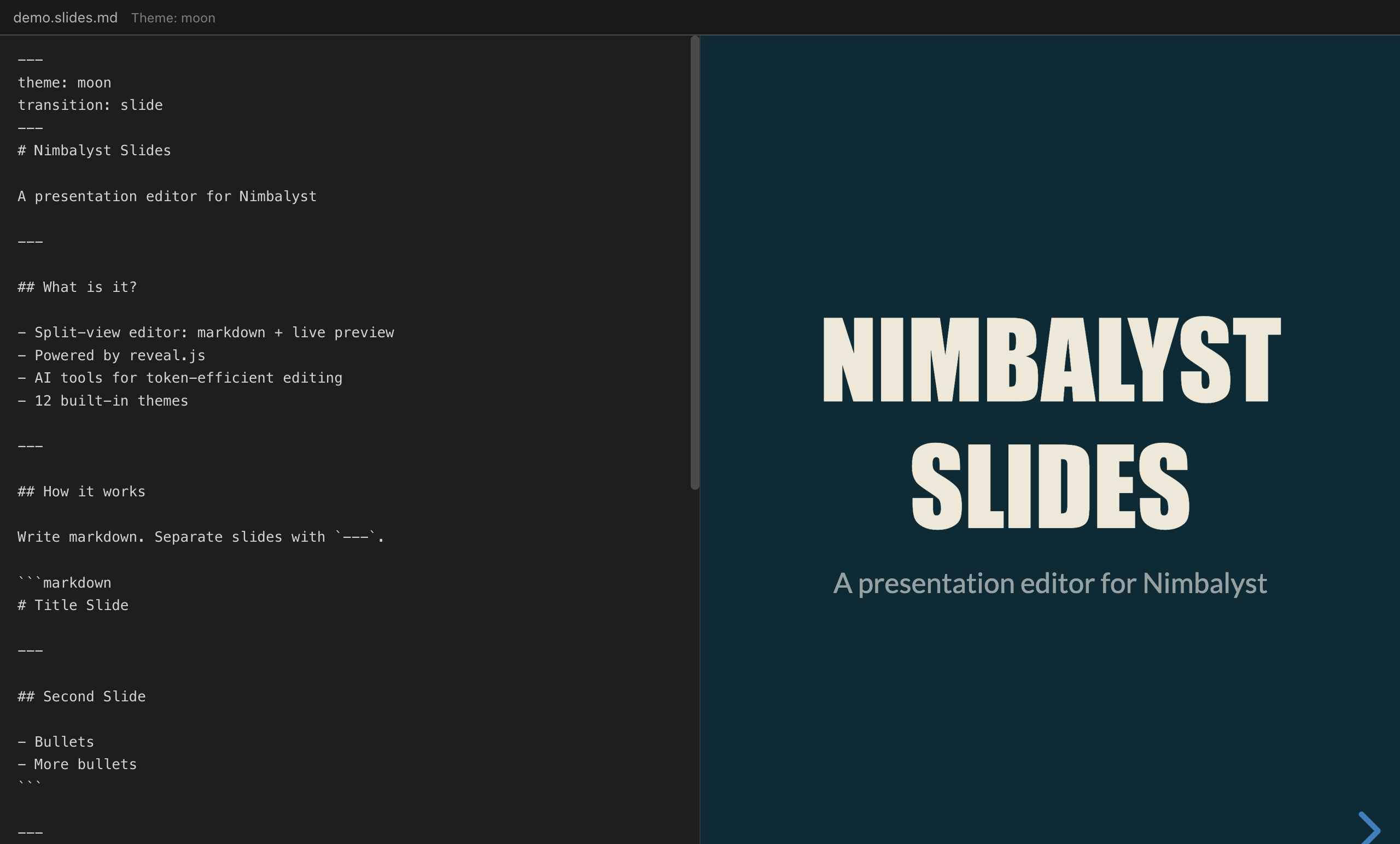
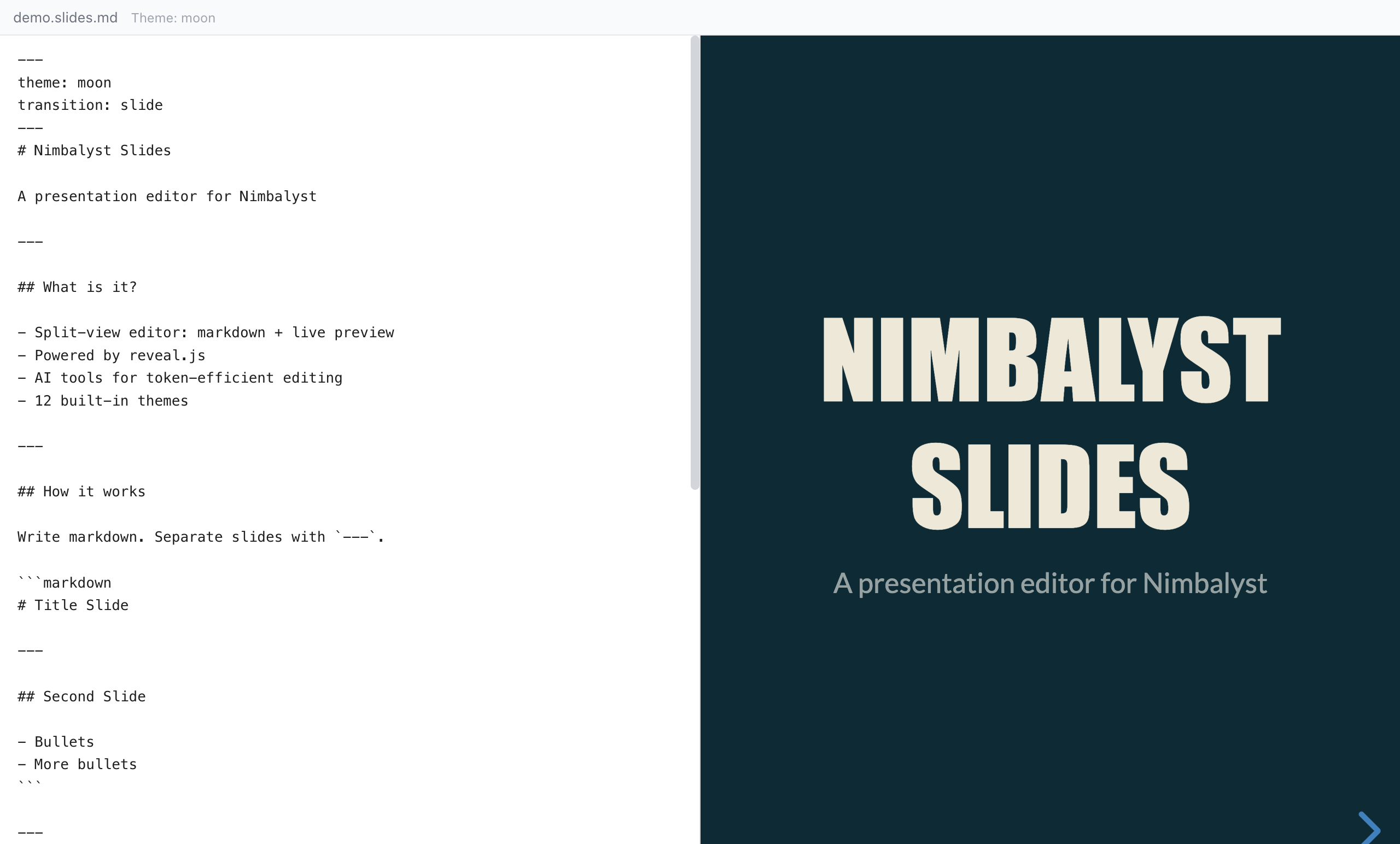
Most presentation tools force you into a GUI-only workflow. Nimbalyst Slides lets you write presentations in markdown — the same format you already use for documentation — with a live reveal.js preview that updates as you type.
Write markdown, get a presentation. Separate slides with --- dividers. Add speaker notes, fragments, custom backgrounds, and transitions using simple frontmatter and HTML comments.
Key Features
- Split-view editing — Markdown source on the left, live reveal.js preview on the right. Changes reflect instantly.
- 12 built-in themes — Black, white, moon, league, beige, sky, night, serif, simple, solarized, blood, and dracula. Switch themes from the header dropdown.
- Speaker notes — Add notes below
Note:in any slide. They appear in the presenter view but not the slides. - Fragments — Progressively reveal bullet points and content using reveal.js fragment syntax.
- Custom backgrounds — Set per-slide backgrounds with colors, images, or gradients via HTML comments.
- AI-powered creation — Ask the AI to create an entire presentation from a topic or outline. It generates properly structured
.slides.mdwith themes, transitions, and content. - Source mode toggle — Switch between the visual split-view and raw markdown editing.
Use Cases
- Technical talks — Write your conference talk in markdown with code blocks and diagrams.
- Team updates — Quick status presentations without leaving your workspace.
- Pitch decks — Professional presentations with custom themes and transitions.
- Lecture notes — Educational content with progressive reveals and speaker notes.
- Documentation walkthroughs — Step-by-step visual guides for onboarding and training.
How It Works
Create a new .slides.md file from the New File menu. The split-view editor opens with markdown on the left and the live presentation on the right. Separate slides with --- dividers. Configure the theme and transition in the YAML frontmatter at the top of the file. Ask the AI to create or modify presentations using the /presentation command.